Version Control lets you save, track, and update versions of your Clockspring Process Groups.
It helps when:
You want a “known good” checkpoint before making changes
You want to reuse logic by treating a Process Group as a template/module
You want to promote changes from Dev → Test → Prod without rebuilding flows manually
Before using version control, your Clockspring administrator must create a Registry and Bucket.
How Version Control Works
Clockspring stores a snapshot of a Process Group, including:
Processor configuration
Connections
Internal child process groups
Relationships and routing
Scheduling settings
It does not store:
Controller services defined outside the versioned group
Parameter contexts (only references to them)
Node-level settings
A versioned process group becomes a tracked object. After saving, any change shows up as a “local difference” until committed.
Saving the Initial Version
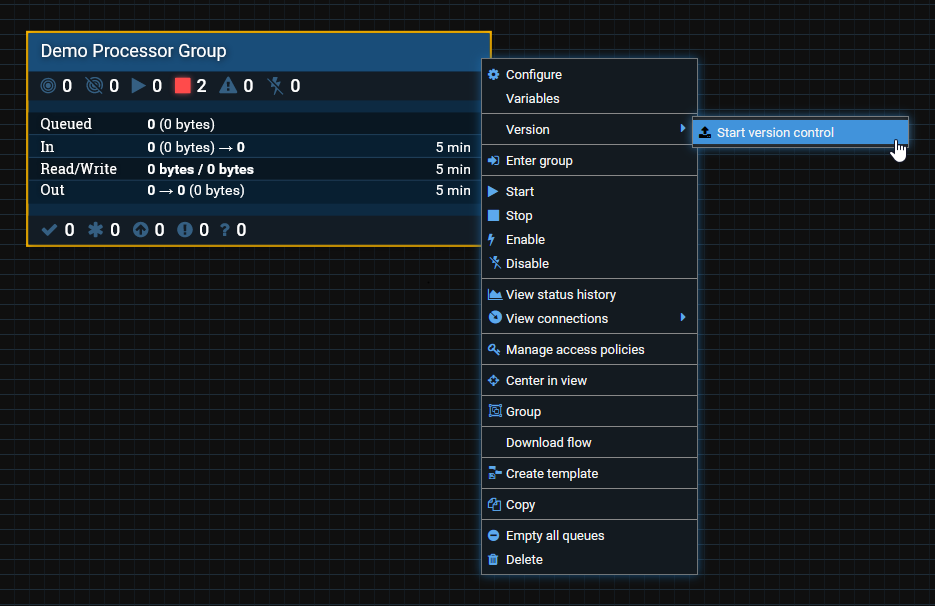
Right-click on a Process Group → Version → Start Version Control.
You’ll be prompted to choose:
Registry
Bucket
Description
Optional comments
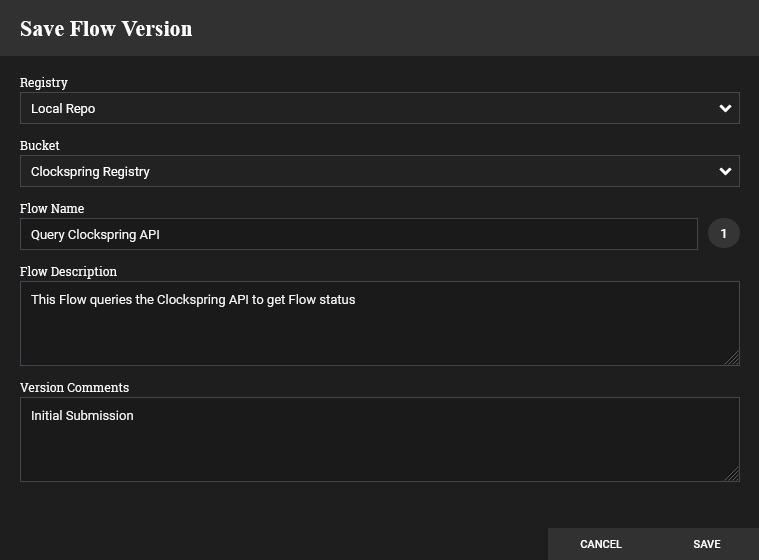
Select Save.
Back on the canvas, the group will show a green check mark ( ) indicating you are on the latest version with no local changes.
Saving changes
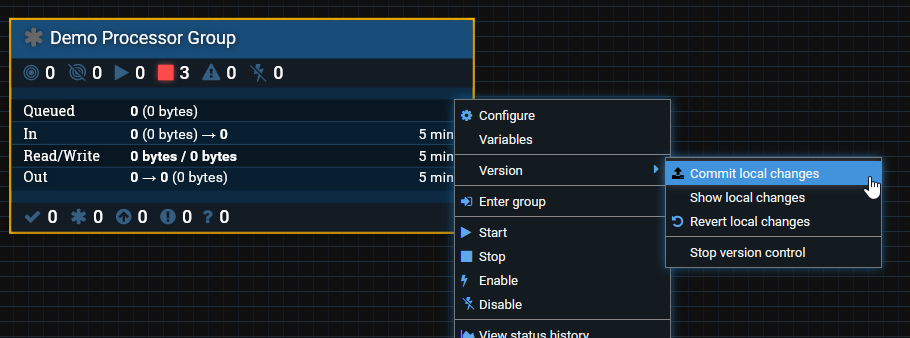
After you modify anything inside the Process Group, the icon will switch to a grey asterisk ( ). This means the group has changes that have not been committed.
To save them:
Right-click → Version → Commit local changes
Add a comment describing what changed, then click Save.
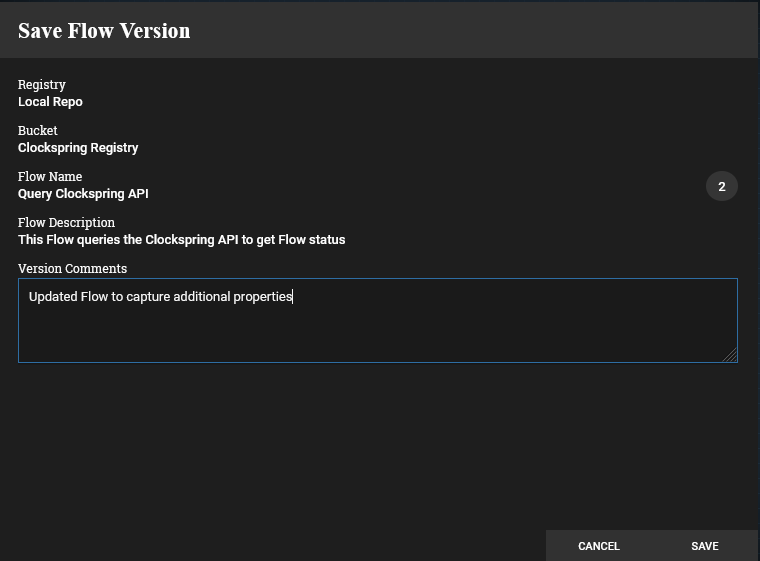
The icon returns to a green check, meaning your workspace matches the version in the Registry.
Reverting Local Changes
If you want to discard all changes made since the last commit:
Right-click → Version → Revert local changes
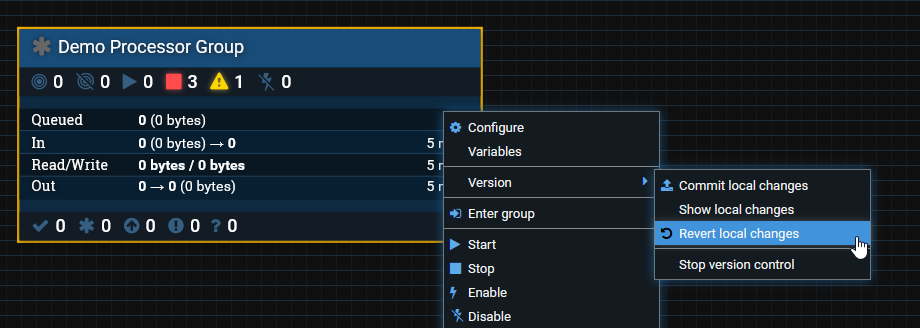
You will see a list of every local modification.
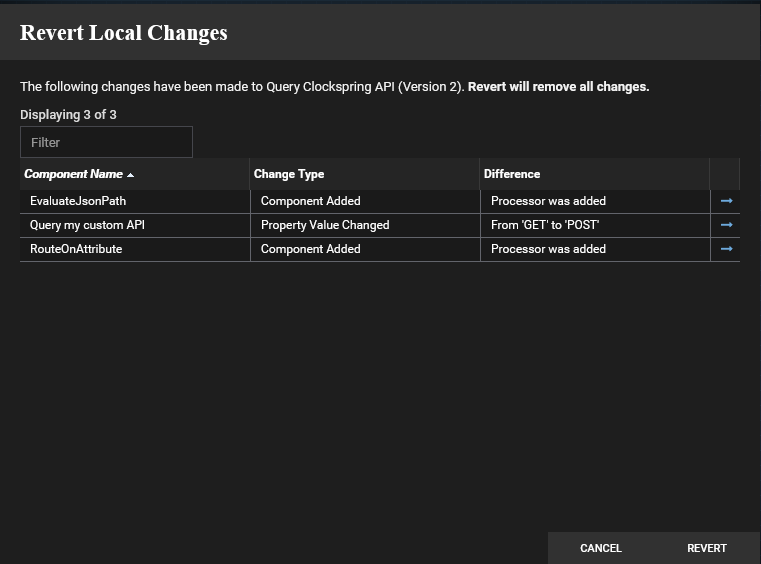
Review to make sure nothing important will be lost, then click Revert.
Your Process Group will return to the last committed version.
Understanding other version control icons
Clockspring uses a few simple icons to describe version state:
Green Check Mark
 You are on the latest committed version
No local changes exist
Grey Asterisk
 Local changes exist
The Process Group has uncommitted modifications.
Commit or revert to return to a clean state.
A Red Up Arrow

A newer version exists in the Registry.
Your local copy is out of date.
Right-click → Version → Change Version
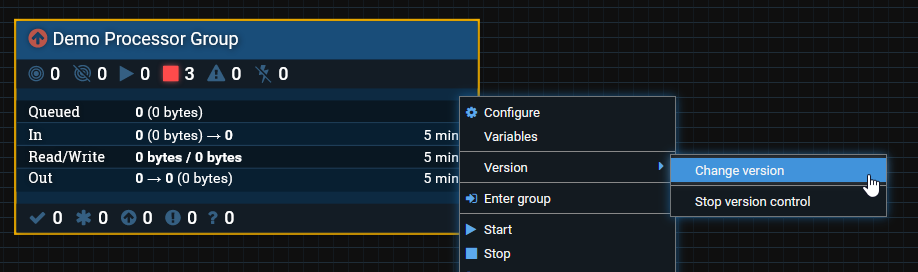
You’ll see a list of available versions and their comments.
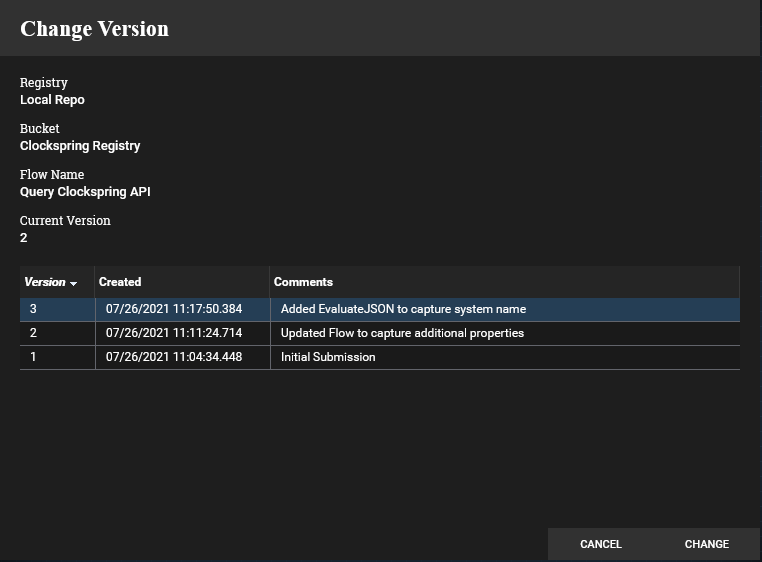
Choose one and click Change, or Cancel to stay on the current version.
A Red Exclamation Point

A newer version exists AND you have local changes.
This is the classic conflict scenario.
You now have two choices:
Option 1: Discard your local changes
If your local edits are not needed:
1. Right-click → Version → Show local changes
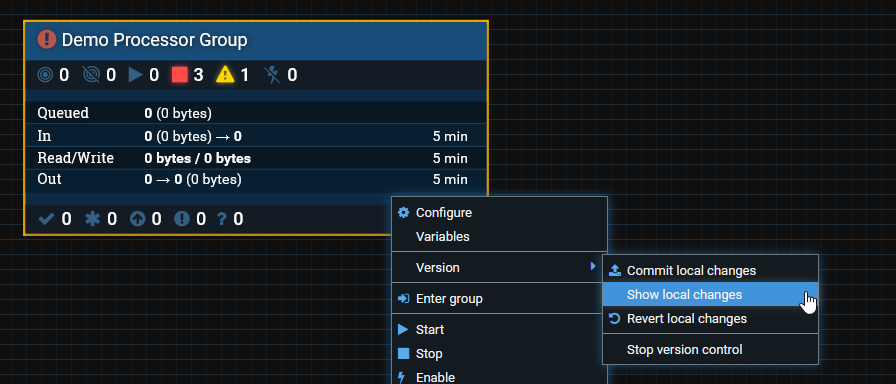
2. Review what would be removed
3. Select Revert
4. Then pull the latest version
This keeps version history clean.
Option 2: Keep your local changes (creates a fork)
If your edits matter, but the Registry also has a newer version:
You cannot merge automatically
You cannot apply both sets of changes together
So you commit your local changes → this creates a fork.
A fork means:
You now have two divergent versions
You (or Dev) will manually reconcile differences later
The Registry simply stores both versions
This is normal in multi-developer or multi-environment setups.
Best Practices for Version Control
1. Version only meaningful modules
Don’t version a large flow unless you intend to promote, reuse, or stabilize it.
2. Name commits clearly
Good commit messages make multi-environment promotion far easier.
3. Avoid unnecessary forks
If you don’t need your local edits → revert before pulling latest.
4. Don’t expect merges
Clockspring doesn’t merge like Git.
Choose either “use mine” or “use theirs,” then reconcile manually if needed.
5. Test in Dev → promote to Prod
This is exactly what version control is for.
Related Articles
Process Group Scoping Overview
Parameter Contexts & Inheritance
Controller Service Inheritance
Moving Flows Between Environments (Import/Export)
Was this article helpful?
That’s Great!
Thank you for your feedback
Sorry! We couldn't be helpful
Thank you for your feedback
Feedback sent
We appreciate your effort and will try to fix the article