Issue:
In many cases there will be a need for your processors to use the same information multiple times. Maybe you want to have a URL defined for a remote system or perhaps capture authentication information for a service account without needing to share the that information with all users of Clockspring. Clockspring uses Parameters to store these variables for use throughout the system (as permitted).
These Parameters can be plaintext data that has readable values for all permitted users or it could contain sensitive information (such as a password or key) that will need to be used but should not be shared via plaintext. Parameters are stored in groups called Parameter Contexts which can be associated to a single Processor Group or many depending on your needs.
Solution:
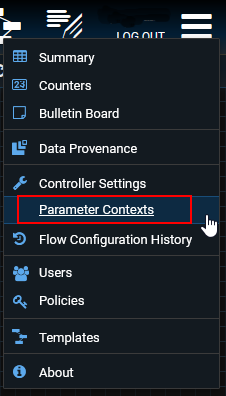
In order to create or edit a Parameter, click on the menu button on the top right of the screen then select Parameter Contexts
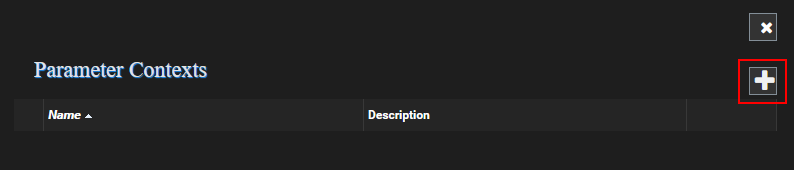
Initially no Parameter Context will be available, so we'll need to create one. Select the + button to add a new Parameter Context
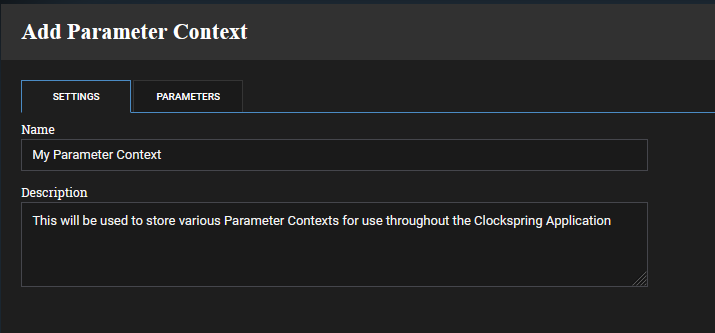
Populate the name and a description
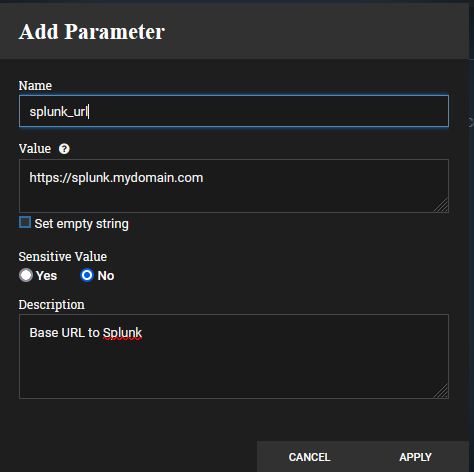
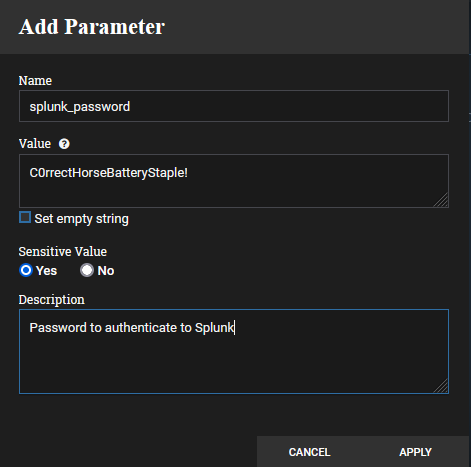
Switch to the Parameters tab and select the + button to add a new Parameter. Here we have the following fields:
Name: <Parameter Name that will be used when calling the Parameter>
Value: <Parameter Value>
Set Empty String: <Will set the value to an empty string>
Sensitive Value: <Will determine if Parameter value needs to be encrypted and obfuscated>
Description: <Description of what the Parameter is used for>
An example for a non-sensitive Parameter is shown below:
Sensitive Parameters
Sensitive Parameters are created the same way, but you must set Sensitive Value to Yes
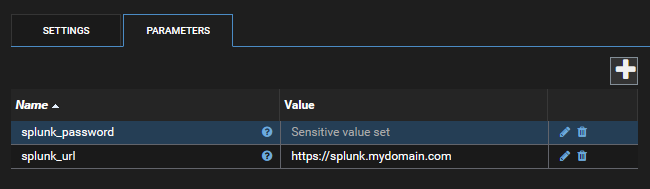
While the password is currently shown on the screen, once applied it will no longer be visible:
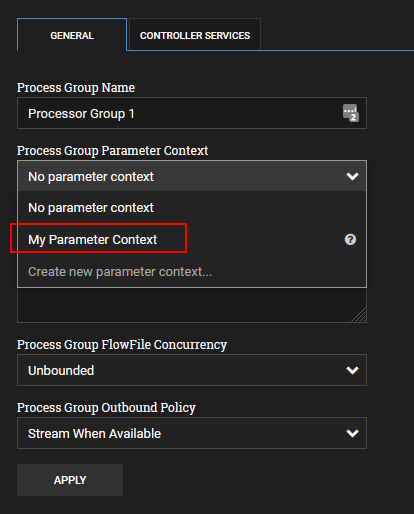
Assign the Parameter Context to your Processor Group
In order for a Parameter to be available to a Processor, the Parameter Context must be assigned to the Processor Group the Processor is contained in.
To assign these, right click on your Processor Group and click Configure. On the General tab choose your Parameter Context to assign to this Processor Group then select Apply
Using Parameters on a Processor
Parameters are referenced using a #{parameter_name} format. For example:
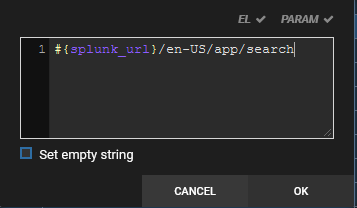
Pro Tip: When typing in your parameter name enter #{ then press ctrl+space to see all available Parameters or to autocomplete your partially typed Parameter.
Note: Sensitive and Non-Sensitive values are only available for use in Processors that have a Property definition of Sensitive or Non-Sensitive. These means that if you identify a Parameter to be sensitive, it will not be available for use in a Processor Property that is not defined as sensitive.
For example the InvokeHTTP processor has some Properties that are Sensitive and others that are Non-Sensitive. We'll use Basice Authentication Username and Basic Authentication Password for this scenario:

The Basic Authentication Username is not defined as a sensitive Parameter so when we try to use a Parameter there we see these available:
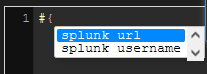
Notice the splunk_password is not a valid Parameter for this Property.
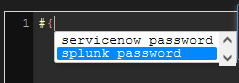
Inversely, Properties defined as sensitive can only use Parameters defined as sensitive. The Basic Authentication Password field has these Parameters available:
Was this article helpful?
That’s Great!
Thank you for your feedback
Sorry! We couldn't be helpful
Thank you for your feedback
Feedback sent
We appreciate your effort and will try to fix the article