Clockspring requires that all ssl connections be trusted when connecting to remote encrypted resources. Most targets signed by Global Certificate Authorities are automatically trusted by Clockspring.
If an organization uses an internal Certificate Authority to sign SSL certificates, or if the application is running using a self-signed certificate, then a Java truststore must be created for Clockspring to allow connections to the target endpoint.
Create the Truststore
To create the truststore, first download the certificte in PEM format to the Clockspring server. The following command can be used to create the truststore:
keytool -import -trustcacerts -alias <<alias>> -file <<filename>> -storetype JKS -keystore <<truststore>>.jks
- <alias> - A unique alias in the truststore
- <filename> - The filename of the certificate in PEM format which should be imported
- <truststore> - The filename of the truststore to be created
Keytool will prompt for a password and whether it should trust the imported certificate. Enter a password and 'yes' to complete the truststore creation.
Note: Currently the truststore type should be set to JKS.
Create the SSL Context
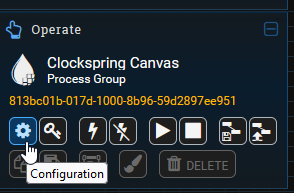
Open the Controller Services screen by clicking on the Gear icon in the menu (shown below)
Click on the Controller Services tab, then click the plus icon to create a new service. Select StandardSSLContextService from the list, then click the Add button.
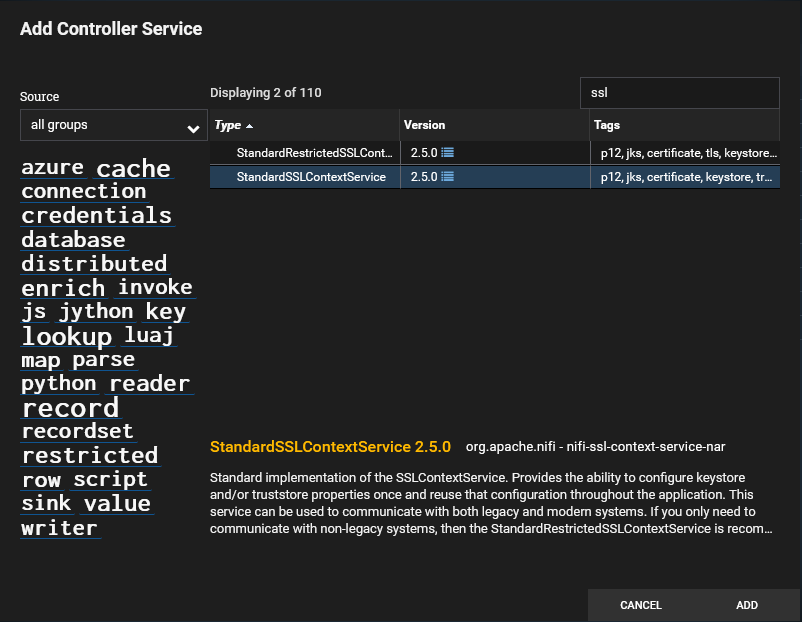
Note: You could also select the StandardRestrictedSSLContext service which provides only FIPS approved algorithms.
Click on the gear icon of the controller service to open the configuration screen.
Select the Properties tab and enter the details for the truststore. The required fields are Truststore Filename, Truststore Password, and Truststore Type. The keystore section can be left blank. An example is shown below:
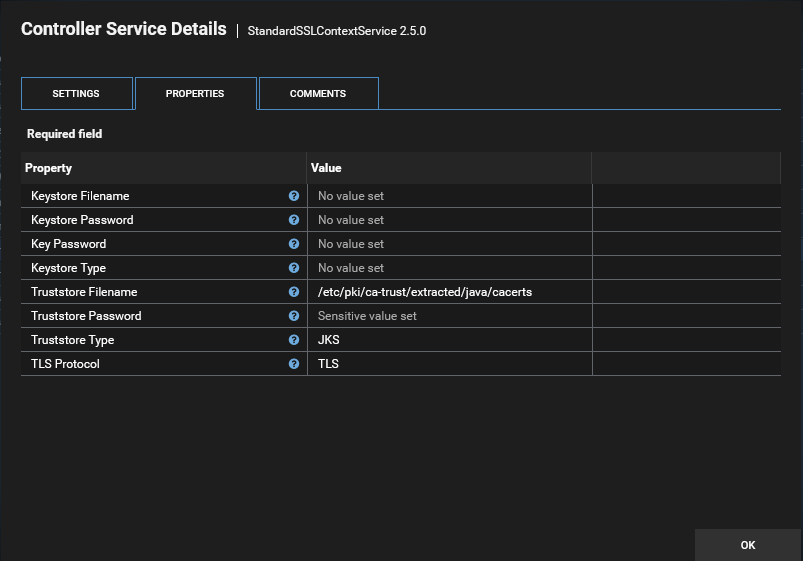
Note: We are using the default java truststore in this scenario. You may use this truststore or load any other certificate truststore as needed. The java default password for this truststore is changeit
Click the Apply button when finished. Validate that no errors exist (orange triangle icon). Enable the controller by clicking on the lightning bolt icon.
Note: It's recommended to configure SSL trust at the Root Canvas level and not restrict it to an individual process group. Otherwise the service will only be available to that individual process group.